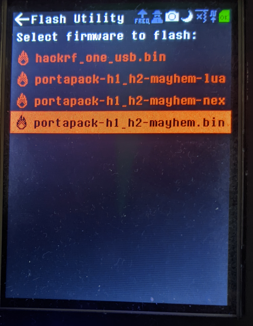

The Flash Utility allows you to install new firmware directly on your PortaPack — without needing a PC. It is the preferred update method for users in the field or those with OS compatibility issues.
Preparing the firmware file
Download the latest release from the Releases page and place the file(s) in the FIRMWARE/ folder on the SD card.
Two file types are supported:
| File | Description |
|---|---|
mayhem_vX.X.X.ppfw.tar |
Recommended. Contains both the firmware image and all external apps. The Flash Utility extracts and installs everything automatically. |
portapack-h1_h2-mayhem.bin |
Firmware image only. External apps in the APPS/ folder are not updated — old apps may stop working if their version no longer matches the new firmware. |
Tip
The easiest method is to unzip
mayhem_vX.X.X_COPY_TO_SDCARD.zipdirectly onto your SD card. This places the firmware inFIRMWARE/and also updates the external apps inAPPS/and any other required data files.
Note
The SD card can be accessed either by physically removing it or — while the PortaPack is connected via USB — by using the SD-Over-USB app.
Flashing
-
Open Flash Utility from the Utilities menu.
-
The file browser shows all firmware files found in
FIRMWARE/:.binfiles are shown in red.tarfiles are shown in cyan
-
Select the desired file.
-
A confirmation dialog appears:
"This will replace your current firmware. If things go wrong you are required to flash manually with dfu."
Select Yes to proceed.
-
If a
.tarfile was selected, it is automatically extracted first. The display shows the filenames as they are unpacked. -
The firmware file is validated before flashing. If the file is corrupt or the wrong size, the error
BAD FIRMWARE FILE OR W/R ERRis shown and the process is aborted — your current firmware remains intact. -
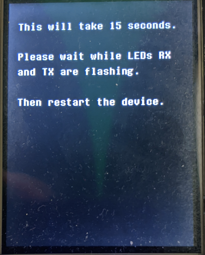
Flashing begins. The display shows:
"This will take 15 seconds. Please wait while LED RX is on and TX is flashing."
Do not power off the device during this step.
-
The device automatically restarts when flashing is complete.
External apps
The version of any External-apps-informations must match the version of the currently running firmware. If only the main firmware .bin is updated without also updating the APPS/ folder, old external apps will not run. Using the .ppfw.tar bundle (see above) avoids this problem entirely, as it updates both the firmware and all external apps in a single step.
If things go wrong
Sometimes something goes wrong and the PortaPack refuses to turn on again. No matter what happens, you can always recover from this situation — the PortaPack has a DFU (Device Firmware Upgrade) mode built into hardware that can never be deleted or overwritten. See Update-firmware-troubleshooting for recovery instructions.